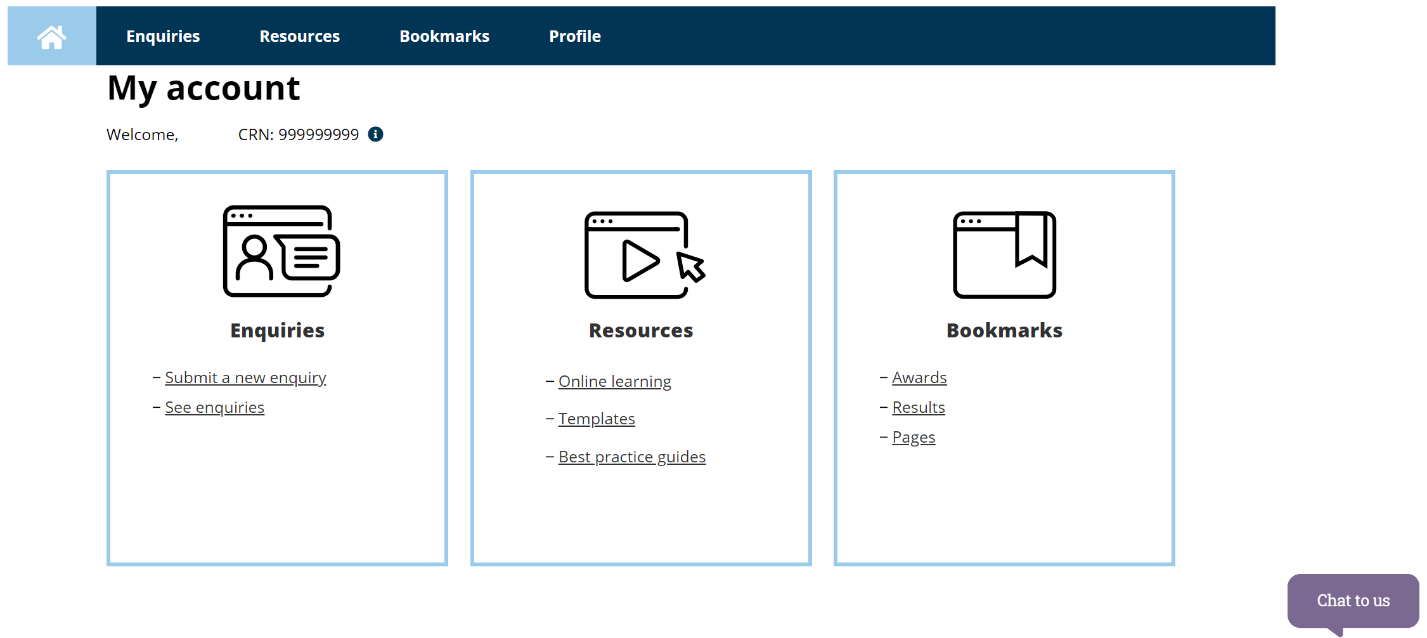
New My account login processes
Published 26 February 2022 | Updated 2 January 2026
There's a new way to log in and register for My account.
We’ve added multi-factor authentication using an authenticator app to the My account log in process.
Every time you log in, you'll need to verify your account using the same authenticator app.
On this page:
- How to register for a new account or re-register to access your current account
- How to log in to My account after you’ve registered
How to register or re-register for My account
Here’s the process to follow if you’re:
- creating a My account for the first time
- logging in to your My account for the first time after 25 February 2022.
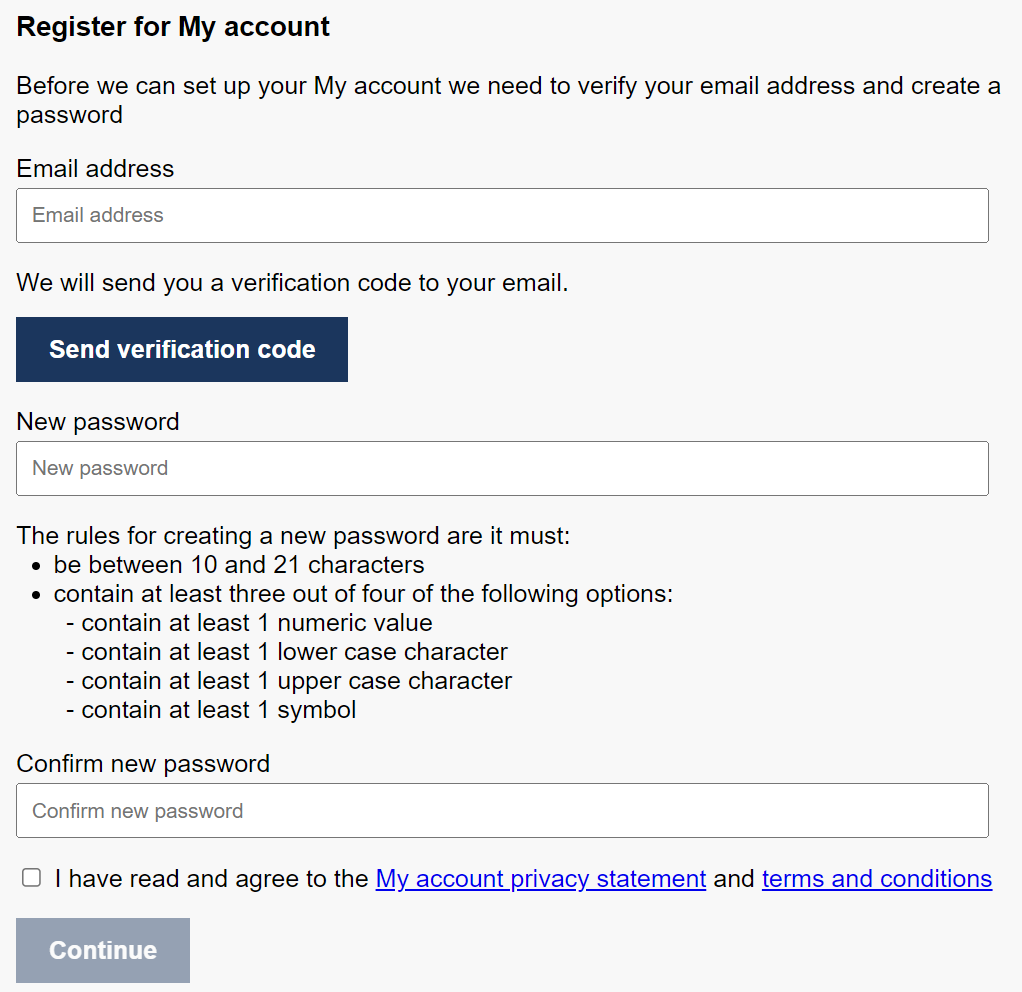
1. Go to Register for My account.
Verify your email address
2. Enter your email address.
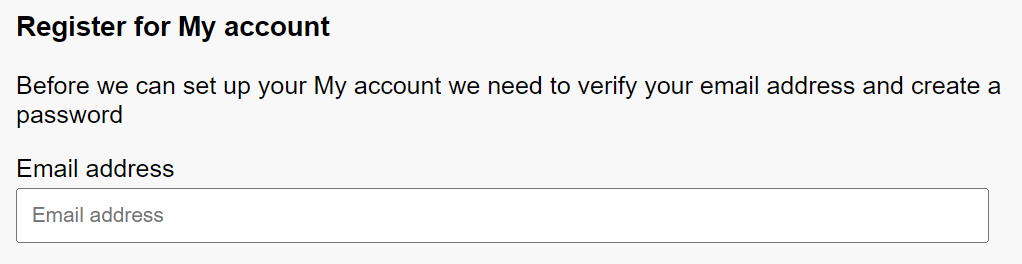
Remember, if you have an existing My account, use the email address you’ve previously used to make sure that you keep your saved information and enquiry history. If you don’t have access to that email account anymore to complete verification, call us and we can update your email address.
3. Press ‘Send verification code’.

4. Open the email from ‘Microsoft on behalf of Fair Work Ombudsman’.
If you can’t find the email, check your junk mail. You can also press ‘Send new code’ to get a new code emailed to you.
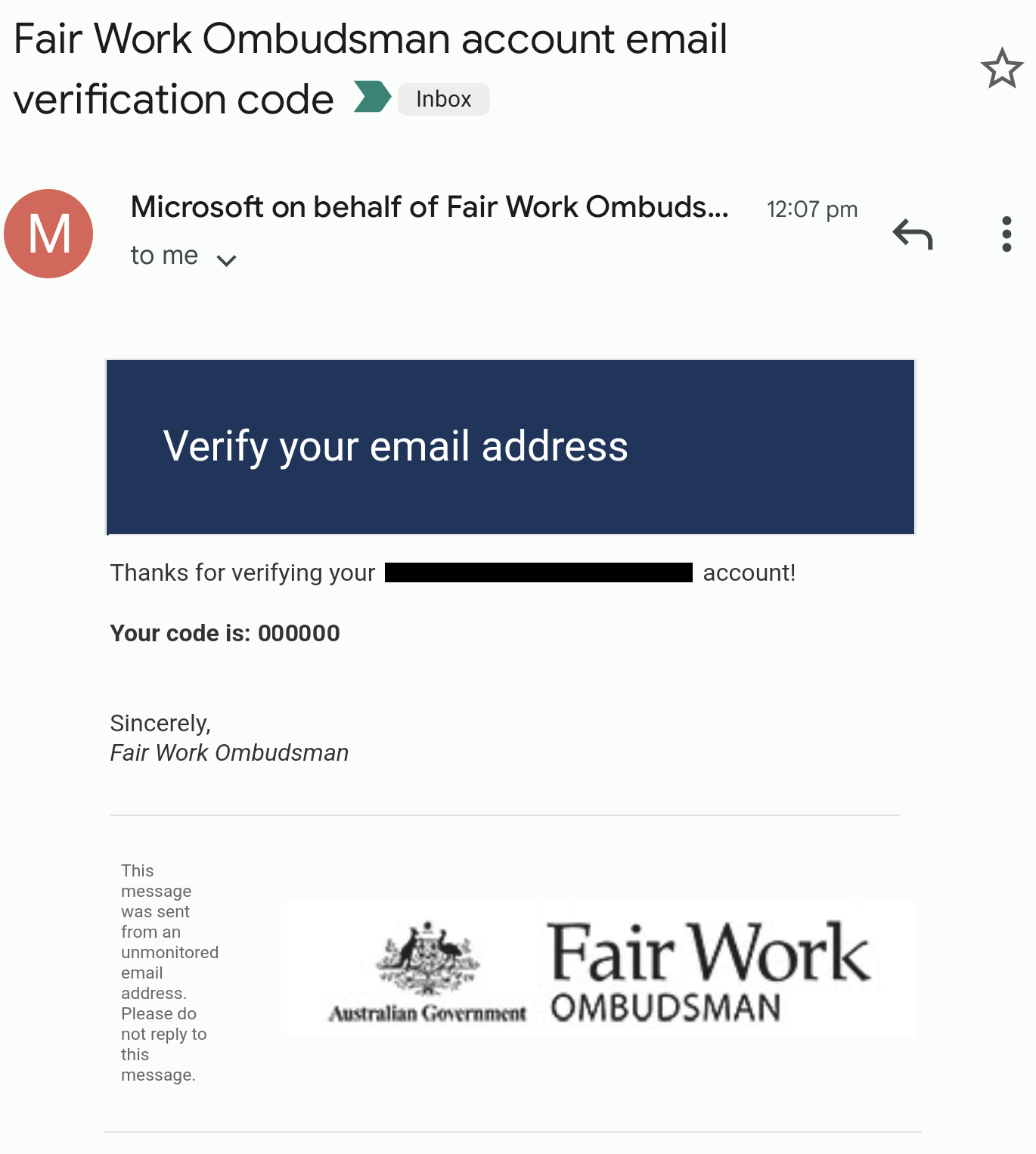
5. Enter the 6-digit code from the email in the ‘Verification Code’ box.
6. Press ‘Verify code’.
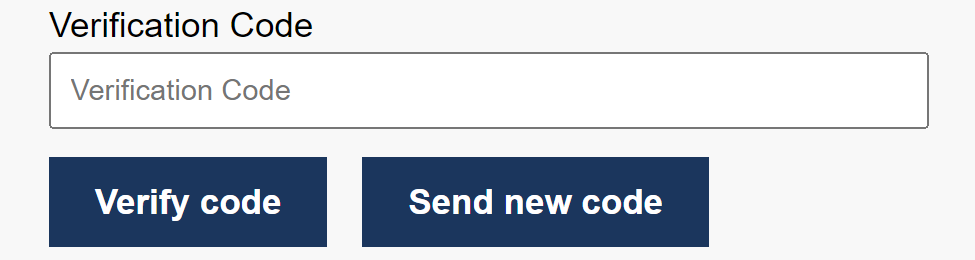
7. Check that you can see the message ‘Email address verified. You can continue now.’
If you have entered the wrong email address, press ‘Change email.’
Remember, if you have an existing My account, use the email address you’ve previously used to make sure that you keep your saved information and enquiry history.
Set your new password
8. In the ‘New password box’, enter your password. Make sure your password follows the rules set out.
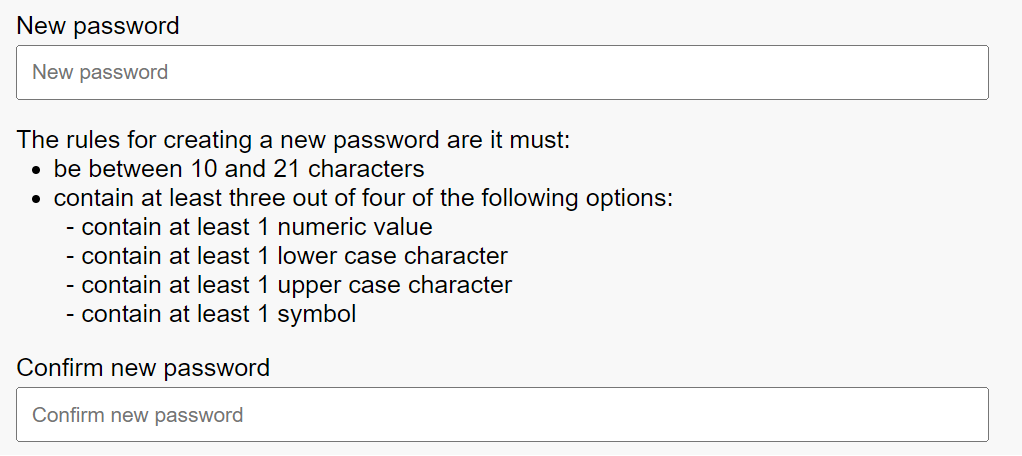
9. In the ‘Confirm new password’ box, retype your password.
10. Read and confirm that you agree to the My account privacy statement and terms and conditions and press ‘Continue’.

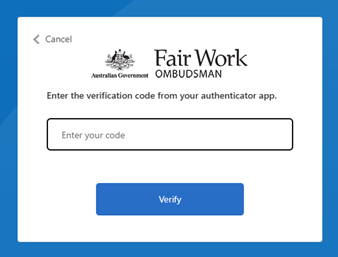
11. Using your authenticator app, scan the QR code to add My account to your services.
12. Enter the 6 digit code and verify your account.
Finalise your registration
13. It’s time to complete your profile. Add your:
- name and address
- customer type
- business industry
- business sub-industry
- business location.
If you’ve re-registered using the same email address you previously used for My account, all of your existing information will appear in your new profile. You can update any profile information that has changed.
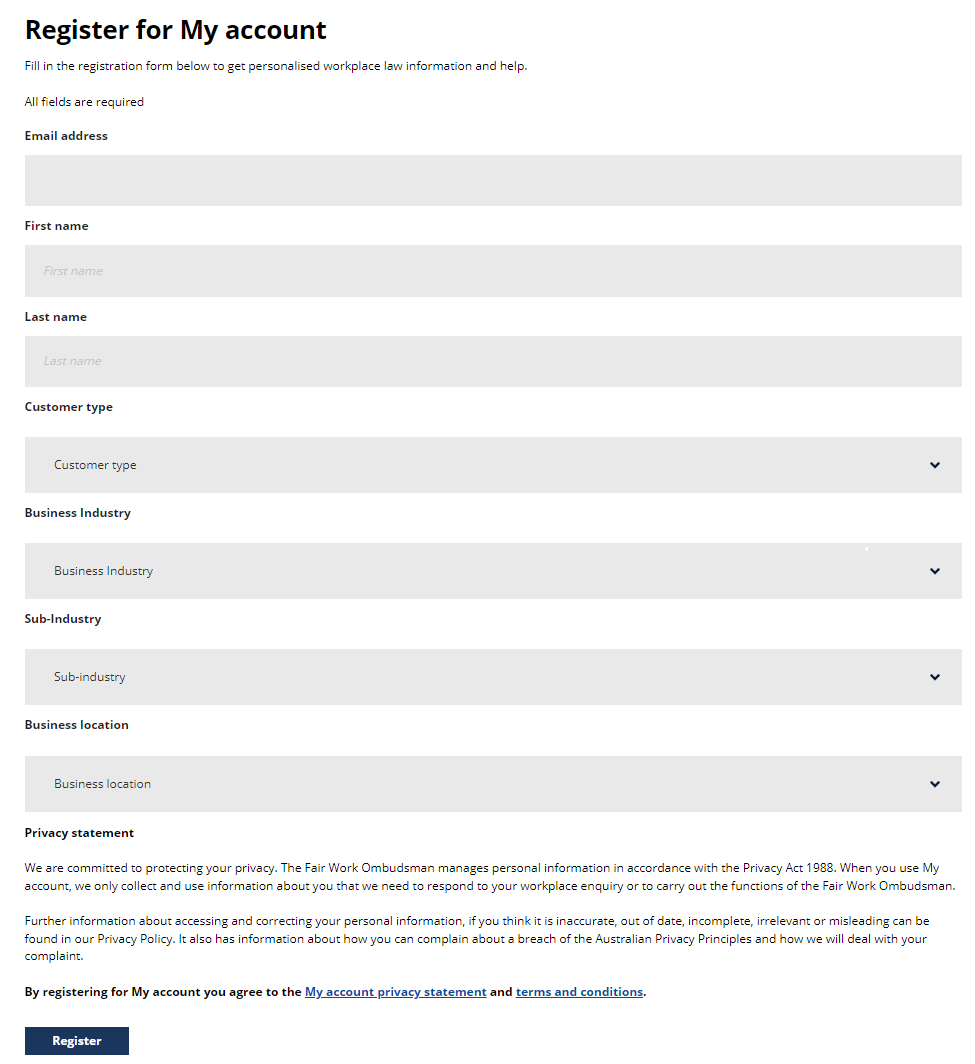
14. Click the My account terms and conditions and privacy statement.
15. Press ‘Register.
16. A box with the message ‘You have successfully registered for My account’ will have appeared under the Register button.

17. Click the link in the box to go to your My account dashboard.
Explore My account
18. Check out My account, where you can submit an enquiry and find tailored news and resources.
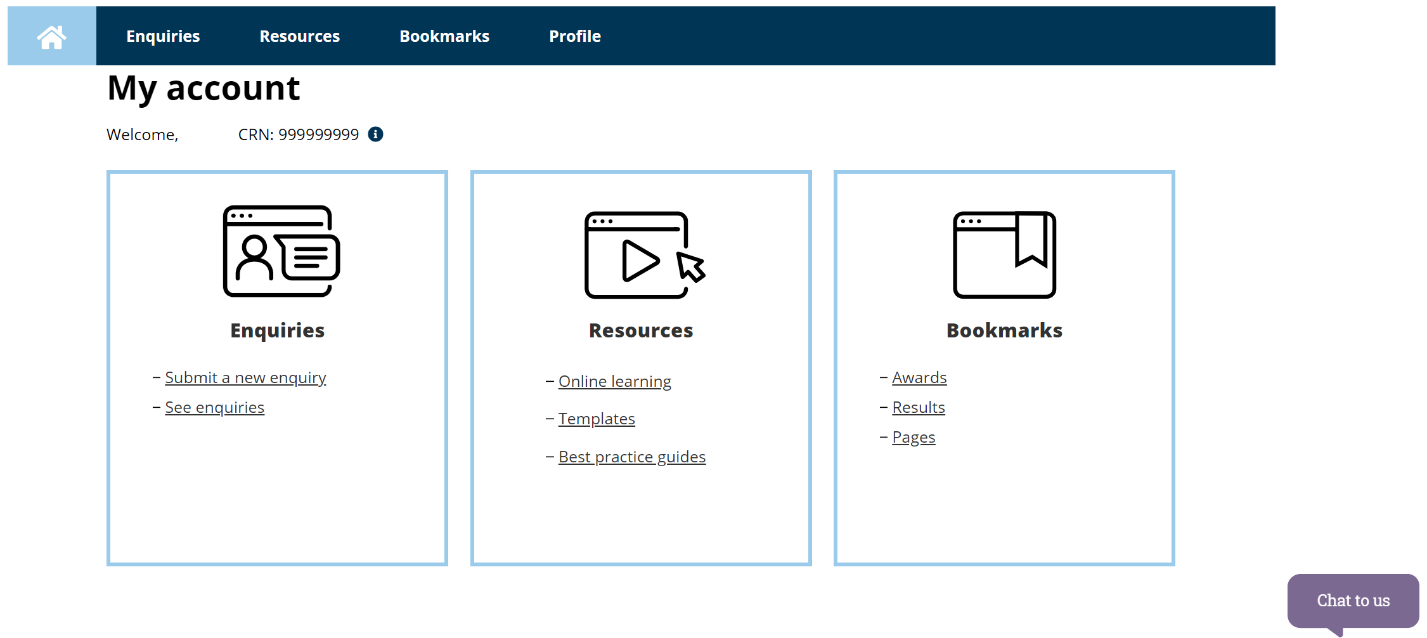
If you’ve re-registered using the same email address your saved information and enquiry history will still be available
How to log in to My account once you’ve registered
1. Go to the My account login page.
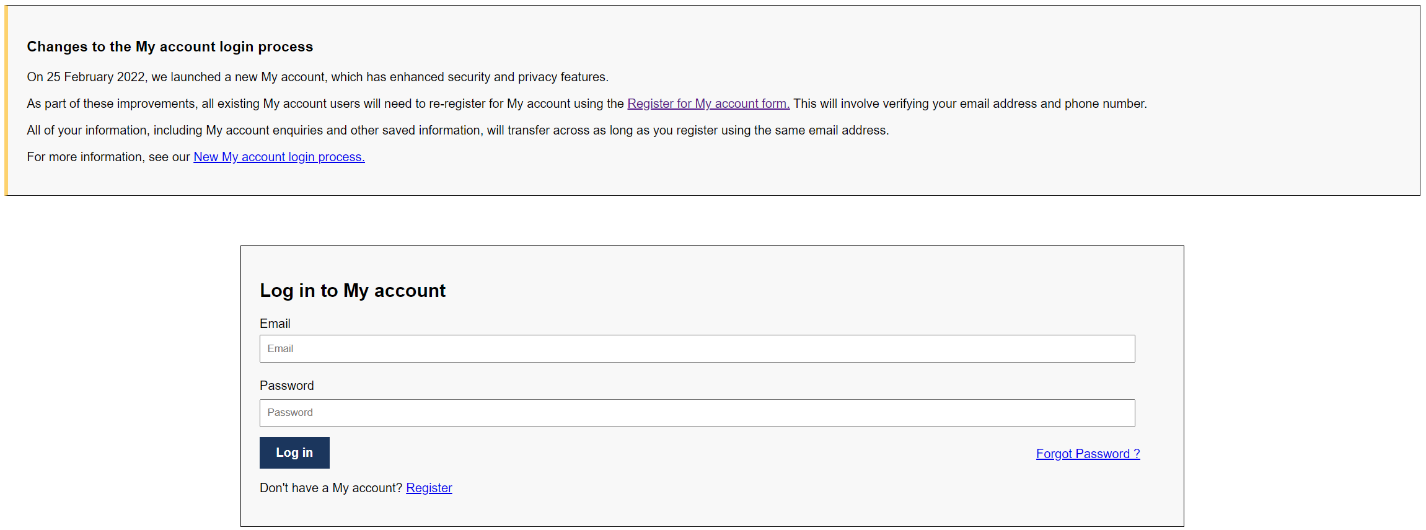
2. Type in your email address and password and press 'Log in'.
3. Enter the 6 digit code from your authenticator app.
4. You’re in! Explore your My account dashboard.